
Choose a clear person or pet photo
Build a useful identity reference before asking a model to animate a face, gesture or reaction.
· Hit the Road Dude

Start here
Build a useful identity reference before asking a model to animate a face, gesture or reaction.
In this guide
At a glance
| Review point | What to check |
|---|---|
| Single subject | Choose one person, cat or dog whose identity is clear, and match the subject type to the photo instead of using a competing group of faces. |
| Recognizable detail | Keep eyes, face shape, hair or fur markings visible; blur, heavy smoothing and covered eyes remove details needed for later comparison. |
| Head and body space | Leave ears, hair and the muzzle intact, with a readable neck and body outline; a tight crop does not guarantee matching output framing. |
| Original file | Open the selected photo, check orientation, and follow the uploader’s actual format and size rules; renaming an extension does not convert the image. |
| Result comparison | Compare the source with the opening, middle and ending. Clear input cannot guarantee stable identity, and each replacement photo needs a fresh result review. |
Choose one intended subject
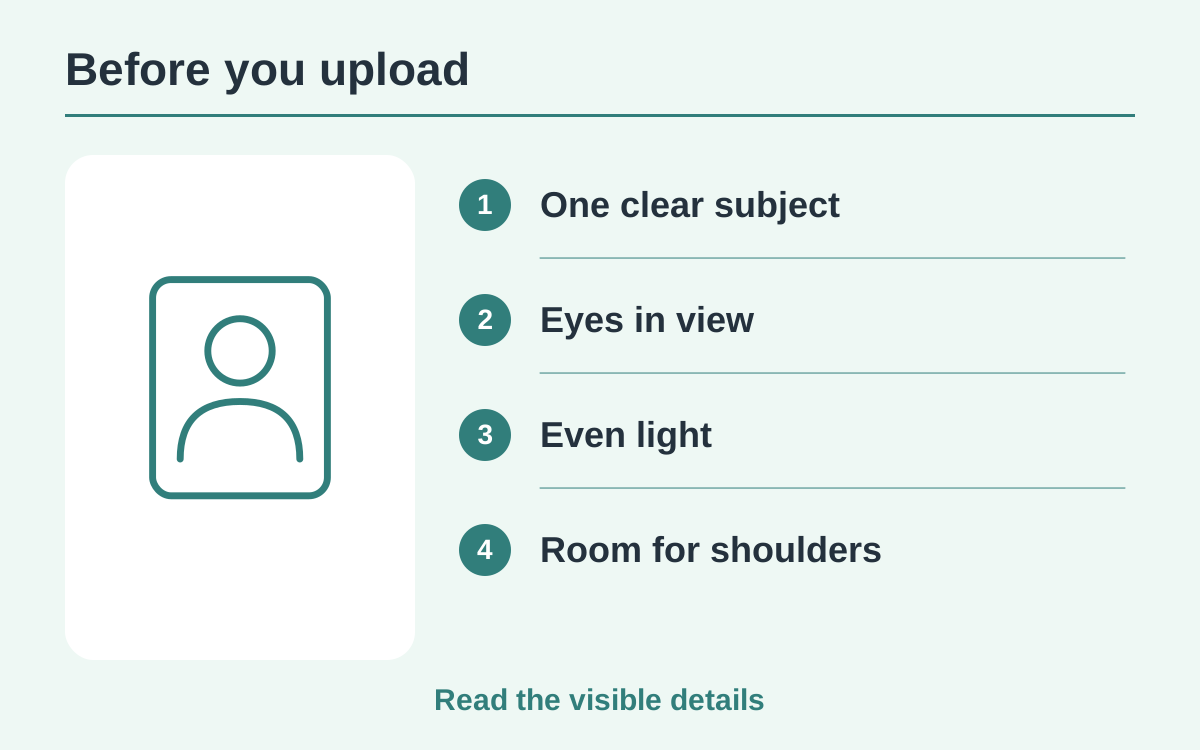
A single visible person, cat or dog makes the intended identity clear. Avoid a group photo where several faces compete. For this site’s main effect, the subject type should match the photo rather than a character you hope the model will invent.
Keep identifying detail
Use enough detail to compare eyes, face shape, hair or fur markings later. Heavy smoothing, sunglasses covering the eyes and motion blur remove useful cues. A natural everyday image is suitable; an elaborate studio portrait is not required.
Leave room around the head
Do not crop through ears, hair or a pet’s muzzle. Include a readable neck and body outline where possible. The output scene can place the subject differently from the photograph, so a tight face crop is not a promise of matching framing.
Check the selected file
Open the original file before upload and confirm its orientation. Screenshots may include app controls or extra borders; use the photo itself when you can. Follow the uploader’s current file-type and size validation instead of renaming an unsupported file extension.
Compare the whole result
After generation, keep the source visible and compare it with the opening, middle and ending. A clear input improves reference quality but cannot guarantee identity through every expression. If you change the photo, treat the new output as a separate result to review.
Questions about this guide
Choose a crop containing only the intended lead. If that crop loses important facial detail, use a different original photo instead.
Continue reading
Make a Hit the Road Dude videoPhoto privacy guide